Last updated: January 20, 2026
Available with any of the following subscriptions, except where noted:

If you're a billing admin, update your billing details and payment method in your HubSpot account. Payment methods include credit cards, ACH, and SEPA.
If you need to change the name on your HubSpot invoice or receipt, learn how to update your company details.
Add a new payment method
To add a new payment method to your account:
- In your HubSpot account, click your account name in the top right corner, then click Account & Billing.
- In the top right, click the Payment Methods tab.
- Click Add Payment Method.
-
- To add a credit or debit card:
-
-
- In the right panel, click the Card tab and enter your credit card information.
- To allow admins to use this payment method in the future, toggle the Allow all admins to use this payment method switch on.
-
-
-
- Click Save.
-

-
- To connect a bank account for SEPA payments (available to accounts based in Europe and the U.K, paying in Euro):
- In the right panel, click the Bank Account tab and enter your bank information.
- To allow admins to use this payment method in the future, toggle the Allow all admins to use this payment method switch on.
- Click Save.
- To connect a bank account for SEPA payments (available to accounts based in Europe and the U.K, paying in Euro):

-
- To connect a bank account for ACH payments (available to accounts based in the U.S.):
-
-
- In the right panel, click the Bank Account tab.
-
-
-
- Select your bank. Or use the search bar to search for your bank.
-

-
-
-
- If you have a Plaid account, you'll be prompted to log in with your Plaid login credentials to provide your bank account information.
- If you don't have a Plaid account, you'll be prompted to log in with your bank credentials to provide your bank account information.
- To allow admins to use this payment method in the future, toggle the Allow all admins to use this payment method switch on.
- Click Save.
-
-
Update a payment method
If a payment method is set as shared, any user with Modify billing permissions can make changes to it. If a user adds a credit card and chooses not to share it, only that user can make changes to the card information, but other admins can still view it.
To edit an existing payment method:
- In your HubSpot account, click your account name in the top right corner, then click Account & Billing.
- Navigate to the Payment methods tab.
- On this tab, the payment methods for subscriptions in your account are shown. For each payment method, you can review the billing address, expiration date, and subscription products.
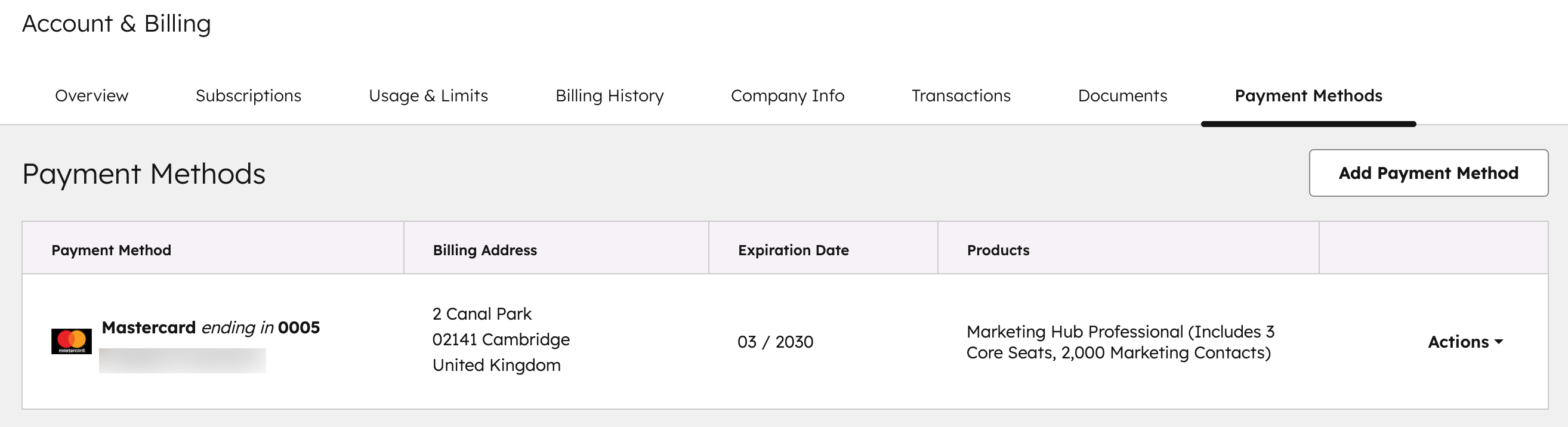
- To edit the billing address of a payment method, click Actions, then select Edit. Update the address, then click Save or Update to confirm.
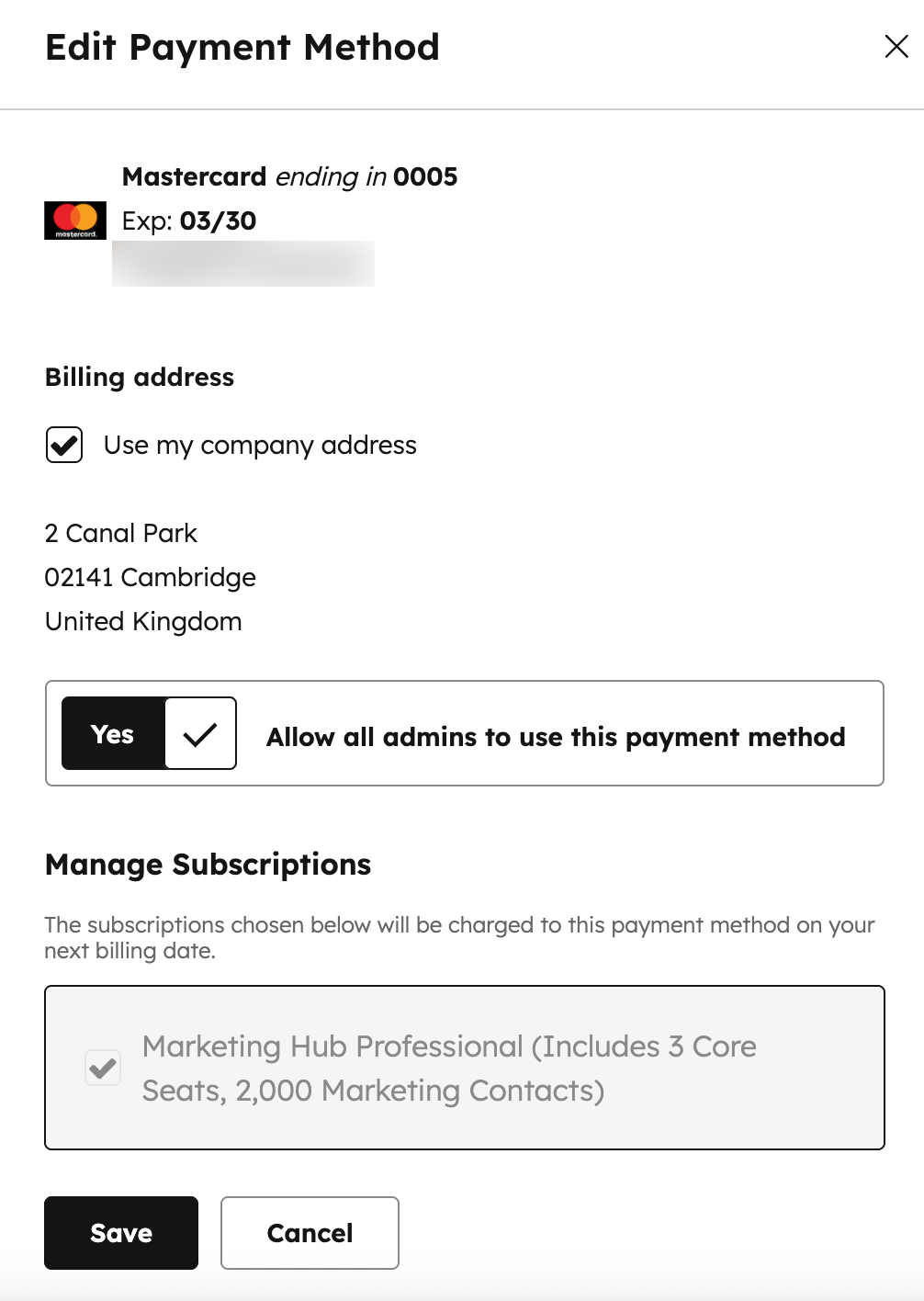
- To allow other admins to use the payment method (credit card and bank accounts only), click Actions, then select Edit.
-
- Toggle the Allow all admins to use this payment method switch on.
- If your account includes more than one product, select the checkbox next to the products that should be paid for using this payment method.
- Click Save to confirm.
- To delete a payment method, click Actions, then select Delete. Click Yes, remove payment method to confirm.

Troubleshoot credit card declines
If your credit card declines while attempting to pay a HubSpot invoice, you can try the following troubleshooting steps:
- Contact your bank to authorize charges from HubSpot.
- Delete and re-add the card to your HubSpot account.
- Clear your browser cache and cookies.
- Switch to a private/incognito window in your browser.
- If the issue persists, contact HubSpot Support.
Frequently Asked Questions
Is my credit card information secure?
Yes. HubSpot Sales uses a third party (Adyen) to process all credit card payments. HubSpot doesn't have access to your credit card number at any point. For more information about the strict security measures that Adyen uses, please see the Adyen security page. HubSpot, Inc. is a Trust-E certified company and compliant with the EU-U.S. Privacy Shield.
How can I change my billing frequency?
To change your contract’s billing frequency from monthly to annual, or vice versa, please contact your Contract Manager.
How do I change my payment method mid-contract (e.g. from credit card to invoice)?
To change your payment method mid-contract, contact your Contract Manager.