Last updated: January 30, 2026
Available with any of the following subscriptions, except where noted:

The HubSpot App for Zoom Meetings is a Zoom App that lets you connect directly to HubSpot from within a live Zoom meeting. You can view meeting participants’ contact records, access information from associated records, and create and associate notes to the call record from within Zoom.
Please note: the HubSpot App for Zoom Meetings is an in-meeting app. This is different from the HubSpot-Zoom integration.
Before you get started
- Ensure your Zoom account meets the prerequisites as stated by Zoom.
- You must be the meeting host to use the HubSpot Zoom App.
Zoom also requires the following scopes:
- View your meetings/meeting:read
- View your user information/user:read
- Enable Zoom App within Zoom Meeting Client/zoomapp:inmeeting
If you're unable to view the Zoom Apps button in your Zoom meeting window, speak with your Zoom account admin.
Install the HubSpot App for Zoom Meetings
If you haven't connected HubSpot and Zoom:
- In your HubSpot account, click the Marketplace icon in the top navigation bar, then select HubSpot Marketplace.
- Search for and select the Zoom (App by HubSpot) app.
- Click Install.
- In the dialog box, enter your Zoom login credentials, then click Sign in.
- You'll be prompted to grant permission for HubSpot to access your Zoom account. Click Allow.
- You'll be redirected back to HubSpot.
If you have already connected HubSpot and Zoom:
- In your HubSpot account, click the settings icon in the top navigation bar. In the left sidebar menu, navigate to Integrations > Connected Apps.
- Click Zoom.
- Navigate to the In-meeting app tab and click Install App.
- In the dialog box, click Install.
Use the HubSpot App for Zoom Meetings
- Start a Zoom meeting.
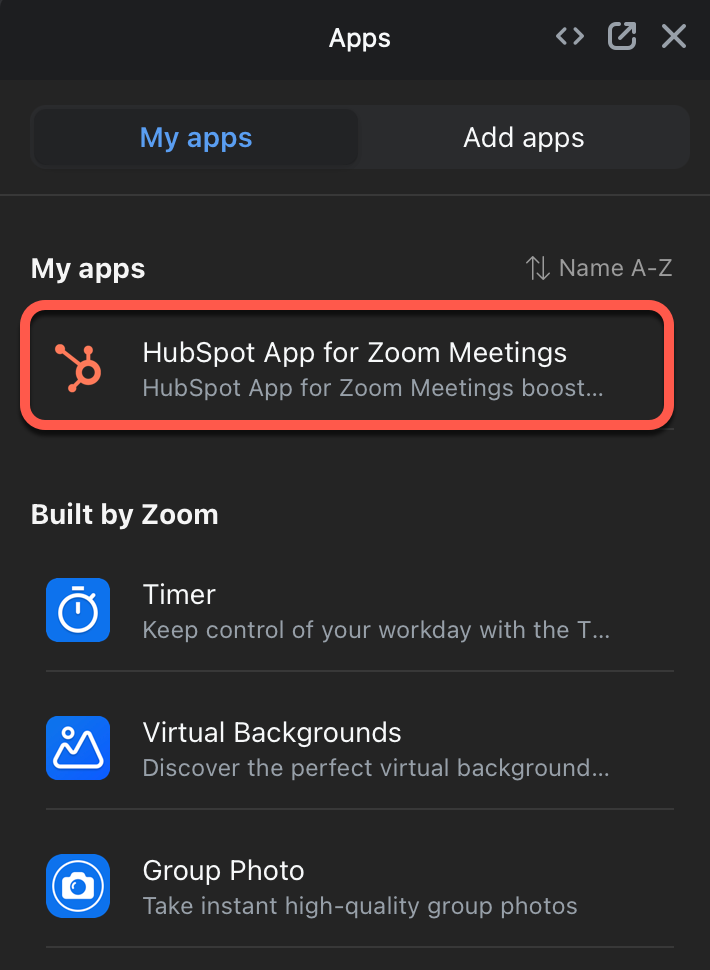
- Click the Apps icon.
- In the My Apps tab, select HubSpot App for Zoom Meetings.
- Click the app.
- Click Log in to log into your HubSpot account.
- Select the HubSpot account that you want to sync the Zoom call to.
Once you have the HubSpot App for Zoom Meetings open during the Zoom call, you can view all participants in the Zoom call, create contact records for them, associate records to the call, and create notes during the call.
Set up your meeting
- After connecting the HubSpot App for Zoom meetings, in your Zoom dashboard, navigate to the Apps tab, then click HubSpot App for Zoom Meetings.
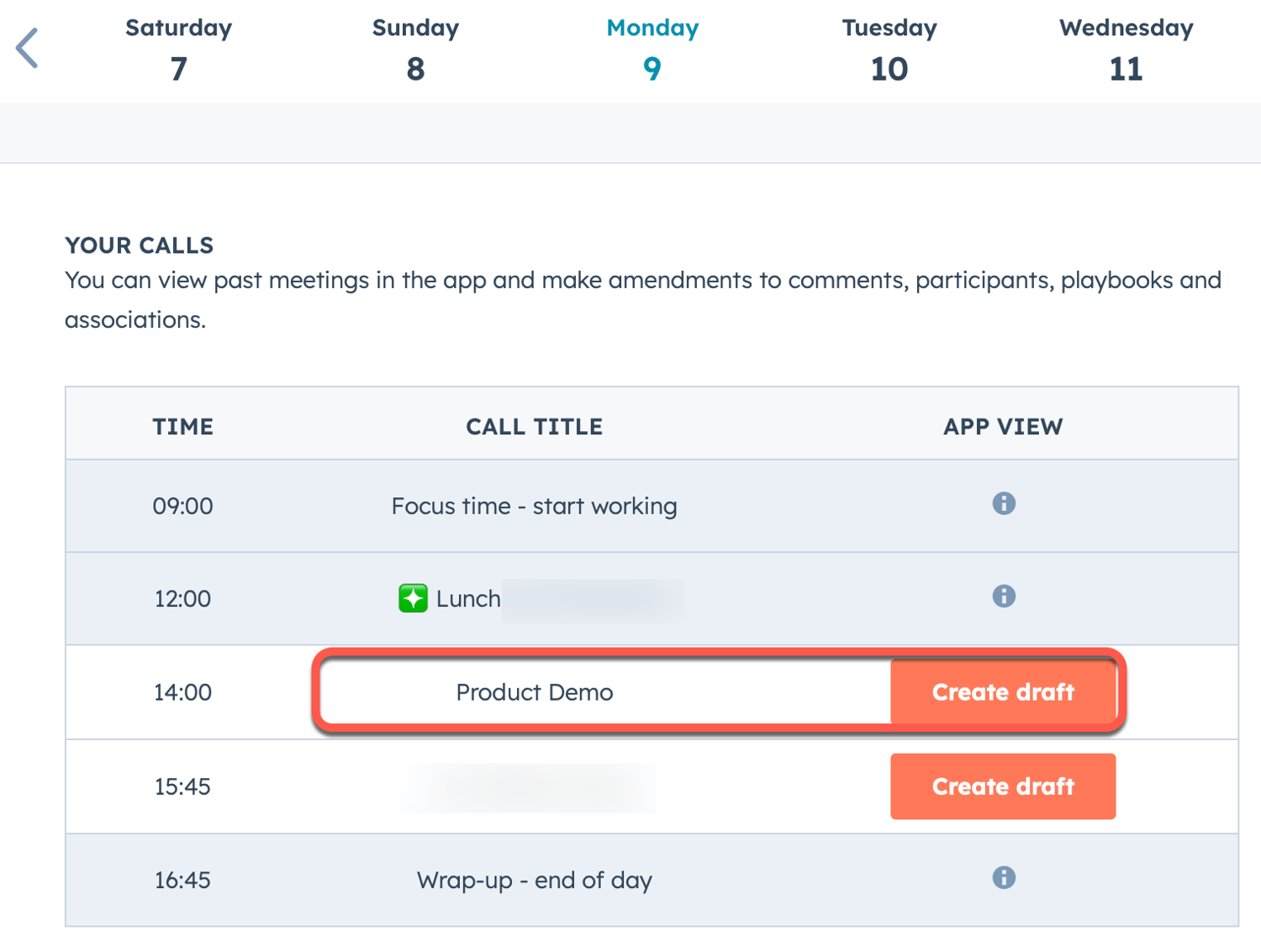
- This will open the Zoom Meeting Planner in Zoom, where you can view all your past and future meetings.
-
- For past meetings: if you used the HubSpot App for Zoom Meetings to record notes, click View in app next to the meeting to open it in your HubSpot account, where you can view all notes and actions taken during the meeting.
- For upcoming meetings: click Create draft next to the meeting. This will open the meeting within Zoom, where you can view a participant's contact record, associate a meeting with a record, make notes, or access a playbook.
View a participant's contact record
Participants in a Zoom call are automatically mapped to their HubSpot contact record if it exists in HubSpot. All notes and activities from the meeting will automatically sync to the contact record when the meeting ends.

Click the Participants tab to view all participants in the call. Participants are mapped to a HubSpot contact record using their First Name and Last Name properties.
-
To edit which contact record is mapped to the participant, click Edit.
- If a participant isn't mapped, click Map to map the participant to a contact record.
- Then, edit the record details:
- In the Create new tab, create a new contact record if a record doesn't exist.
- Enter the relevant contact properties.
- Click Create contact.
- In the Create new tab, create a new contact record if a record doesn't exist.
-
- On the Add existing tab, select the suggested contact record. Or, click the Search contacts dropdown menu to search for a specific contact record.
- Click Save.
Associate the call with a company, deal, or ticket record
- Click the Associations tab to associate the call with any existing company, deal, or ticket record in your account.
- Click Add in the record section.
- In the Add Existing section, click the Search dropdown menu and select the record to associate the call to.
If any of the sections are grayed out, your account's administrator will need to give you permissions to edit the object record.
Create and associate notes
- Click the Comments tab.
- Enter the note and click Save.
The note will be saved to the call record.
After the Zoom meeting ends, it'll be saved to the call index page in HubSpot where you can review the call, its associated records, and the notes that were taken during the meeting.
Use playbooks
- Click the Playbooks tab.
- Click the dropdown menu and select the contact you want to associate the playbook with.
- Select the playbook and enter any content.
- Click Log call to log the call and its associated playbook to the contact record.
Uninstall the HubSpot App for Zoom Meetings
To uninstall the HubSpot App for Zoom Meetings from your Zoom client:
- Log into your Zoom account and navigate to the Zoom App Marketplace.
- Click Manage, then click Installed Apps. Or, search for HubSpot App for Zoom Meetings in the search bar.
- Click HubSpot App for Zoom Meetings.
- Click Uninstall.