Last updated: December 31, 2025
Available with any of the following subscriptions, except where noted:

AMP, or Accelerated Mobile Pages, is a mobile-specific page format that loads almost instantly on mobile devices. To load the content quickly, the AMP version of your blog posts won't load any JavaScript files, stylesheets, HubSpot forms, head HTML, or footer HTML.
Understand limitations & considerations
- AMP isn't available for HubSpot landing pages or website pages.
- Featured images on blog posts with AMP turned on should be at least 1200 pixels wide.
- Views of content with AMP turned on will not be tracked on a contact's timeline because AMP blocks the JavaScript included in the HubSpot tracking code.
- You can turn on AMP for all posts on a blog or only for specific posts.
Apply AMP across all posts on a blog
Use this option to turn on AMP for all existing and future blog posts. This approach is best if you want AMP applied consistently across your blog without managing it post by post.
Please note: if you want to turn on AMP for multiple HubSpot-hosted blogs, you will need to repeat these steps for each blog.
- In your HubSpot account, click the settings icon in the top navigation bar.
- In the left sidebar menu, navigate to Content > Blog.
- If you have multiple blogs, click the Current view dropdown menu and select a blog.
- Click the Google AMP tab.
- Toggle the Turn on Google AMP formatted pages switch on.

- Customize the logo, font, and font color of your Google AMP pages. Learn more about Google's recommendations for this content.
- When finished, click Save.
Apply AMP to a specific blog post
Use this option if you only want AMP turned on for specific blog posts. This is helpful if you’re testing AMP or only need it for select content.
Please note: this option is only available if AMP is not turned on in your blog settings.
- In your HubSpot account, navigate to Content > Blog.
- Click on the name of your post.
- In the content editor, click Publish in the top right.
- In the dialog box, select the Enable Google AMP just for this blog post checkbox, then click Publish.
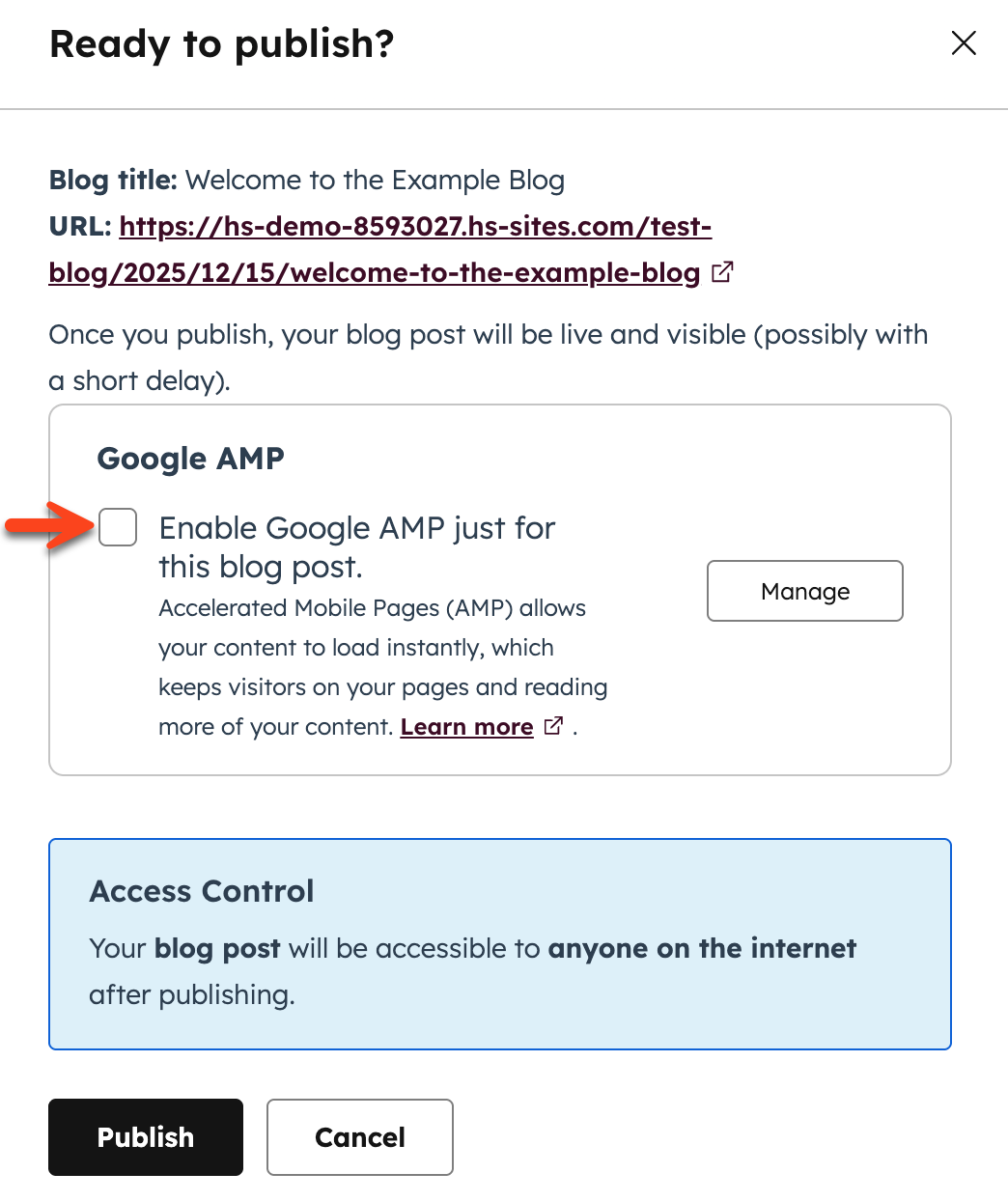
HubSpot will now validate this specific blog post. The next time Google crawls the blog post, they will cache the AMP version. If there are errors with the AMP version, Google will send you an email directly to let you know.
Troubleshoot AMP issues
If Google Search Console reports issues with your AMP pages, HubSpot recommends checking the AMP validator. This tool gives descriptive error messages and will find the error's location.
- In your browser, open the AMP validator, then open a new tab to access HubSpot.
- In your HubSpot account, navigate to Content > Blog.
- Click on the name of your post.
- Click the File menu and select Blog settings.
- In the Post URL section, click Copy link.
- In the AMP validator, paste the URL of the blog post in the URL field.

- At the end of the URL, enter
?hs_amp=true, then click Validate. - Once you've validated your URL, any AMP errors will appear below the HTML. AMP errors may include:
-
- The attribute 'style' doesn't appear in <div> tag: this is frequently caused by a Wistia embed code, which is not yet supported in AMP pages.
- The <script> tag is disallowed except in specific forms: this is frequently caused by a Wistia embed code, which is not yet supported in AMP pages.
- The 'style' attribute doesn't appear in the <span> tag: this is frequently caused by a Wistia embed code, which is not yet supported in AMP pages.
- Malformed URL '...' for attribute 'href' in <a> tag: a link URL in the post body is formatted incorrectly.
- Invalid URL protocol '...' for attribute 'href' in <a> tag: a link URL in the post body is formatted incorrectly.
- Images should be at least 1200 pixels wide for AMP: your blog post doesn't have a featured image that is at least 1200 pixels wide.