Last updated: January 15, 2026
Available with any of the following subscriptions, except where noted:

When you create a HubSpot account using your Apple ID on an Apple mobile device or desktop, you can sign in with Apple ID instead of a password. You can also authenticate using Touch ID, Face ID, or your device passcode. If you have an existing HubSpot account, you can sign in with Apple ID as long as your HubSpot user email address matches your Apple ID email address.
If you don’t have Apple ID set up on your device, or if you've forgotten your Apple ID password, visit Apple's Apple ID support page.
Understand requirements
To sign up or log in to the HubSpot with your Apple ID, the following is required:
- To log in on mobile with your Apple ID, you need iOS 14 or later.
- You must have an Apple ID that uses two-factor authentication.
- You must be signed in to iCloud with your Apple ID on the device you're using to log in to HubSpot.
Create a new account using Apple ID
You can create a new HubSpot account using your Apple ID on desktop or mobile. Then, you'll be able to sign in to HubSpot using an Apple ID on any Apple devices.
Desktop
To create a new account using Apple ID:
- Navigate to HubSpot’s sign up page.
- Click Sign up with Apple
- Enter the email or phone number associated with your Apple account, then click Continue.
- Enter your Apple ID password.
- To complete the signup process, continue entering your account details.
Mobile (iOS)
- On your device, open the HubSpot mobile app.
- Tap Sign up.
- Tap Sign up with Apple.
- Set your name and email.
- To use your Apple ID email address as your HubSpot user email address, select Share my email.
- To use an email address generated by Apple, select Hide my email.
- Tap Continue.
- Enter your details, then tap Create.
Log in to an existing account using Apple ID
To log in to an existing account using Apple ID, your HubSpot user email address and Apple ID email address need to match.
Before you can begin, you should verify that your HubSpot email address is the same as your Apple ID. Learn how to locate the email address associated with your HubSpot account. If your HubSpot user email address and Apple ID email address don't match, you'll need to change your HubSpot user email address to match your Apple ID address.
Desktop
On your Apple device:
- Navigate to System Settings.
- In the left sidebar menu, select your Apple ID under your name.
- Click Sign-in & Security, then under Email & Phone Numbers at the top, find the email address associated with your account.
- Click Sign in with Apple.
- In the left sidebar menu, select HubSpot.
- If you hid your email address when creating your account, you should see the Hide my email section. You can identify your Apple private email address under This app received.
- Once the email addresses match, in your browser, go to the login page.
- Click Sign in with Apple.
Mobile (iOS)
On your iOS device:
- Navigate to Settings.
- Tap Sign-in & Security.
- Tap Sign in with Apple.
- In the Apps Using Apple ID list, tap HubSpot. If you hid your email address when creating your account, tap Password & Security, then tap Apple ID Logins and locate HubSpot.
- Once your email addresses match, open the HubSpot mobile app.
- On the sign-in screen tap Sign in with Apple.
Accept a user invitation using Apple ID
You can start using Apple ID to sign in to HubSpot by accepting a user invitation. Your HubSpot user email address and Apple ID email address must match.
- Open your invite email and click Join HubSpot. If more than fourteen days have passed since the email was sent, you will need to request a new invitation.
- A new window will open in your browser. Click Continue with Apple in the dialog box.
- In the Email or Phone Number field, enter your email address if the field is blank.
- Continue signing in using a password or passkey.

- Enter the verification code from your two-factor authentication device.
- When prompted whether to trust your current browser, select Trust, Don't Trust, or Not Now. This will determine how frequently you have to enter a verification code signing in to HubSpot with Apple ID.
- In the Email field, select Share my email, then click Continue. This will allow HubSpot to verify that you're using the same email address for your Apple and HubSpot accounts.
- Answer a few questions to help you get started using HubSpot.
Please note: if you instead select Hide my email, you will not be able to sign in to HubSpot using Apple ID. You will then need to disconnect your Apple account, as outlined below, before restarting the process.
Disconnect HubSpot from your Apple account
If you wish to stop using your Apple account to sign in to HubSpot, or are having problems signing in due to selecting Hide my email, you can disconnect HubSpot from your Apple account with these steps:
- Sign in to your Apple account.
- In your Apple account settings, click Sign-In and Security in the left sidebar menu.
- Click to open the Sign In with Apple settings.
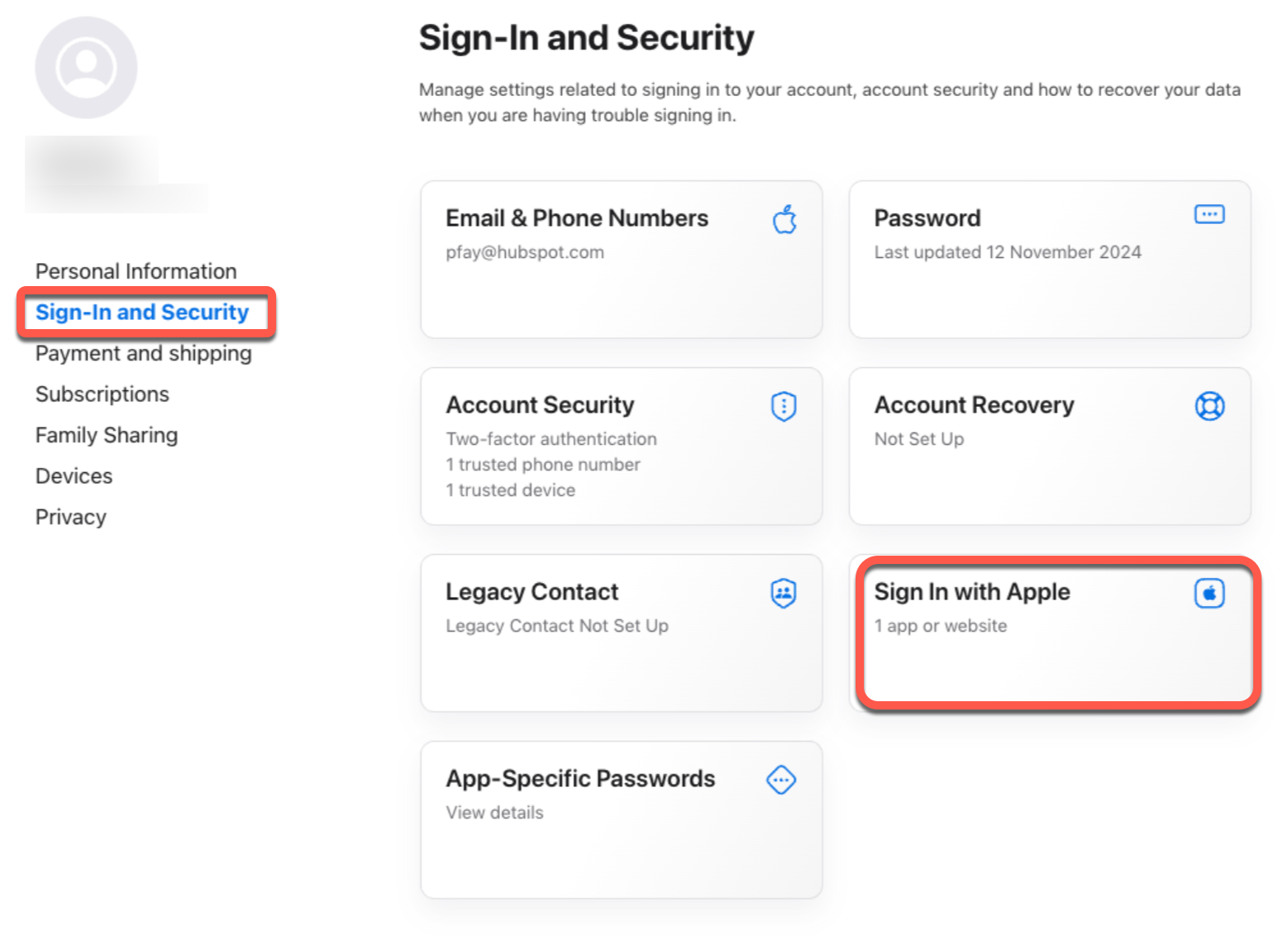
- In the dialog box, select HubSpot.
- Click Stop using Sign in with Apple, then click Stop Using.