Last updated: January 23, 2026
Available with any of the following subscriptions, except where noted:

-
 Seats required for certain features
-
Additional subscriptions required for certain features
Use the HubSpot Sales Office 365 add-in to prepare for upcoming meetings, follow up after meetings, and log meeting outcomes directly from your Outlook calendar.
Understand requirements
- To manage meetings in your Outlook calendar, you must:
- Install the HubSpot Sales Office 365 add-in.
-
- Connect your Office 365 calendar to HubSpot.
- Ensure you’re using the latest version of Outlook.
- To prepare and follow up on meetings in your Outlook calendar, the meeting must have at least one CRM contact as an attendee. That contact cannot have an email address with the same domain as your account.
Access HubSpot Sales in your Outlook calendar
- In your Outlook calendar, click an existing meeting or create a new meeting.
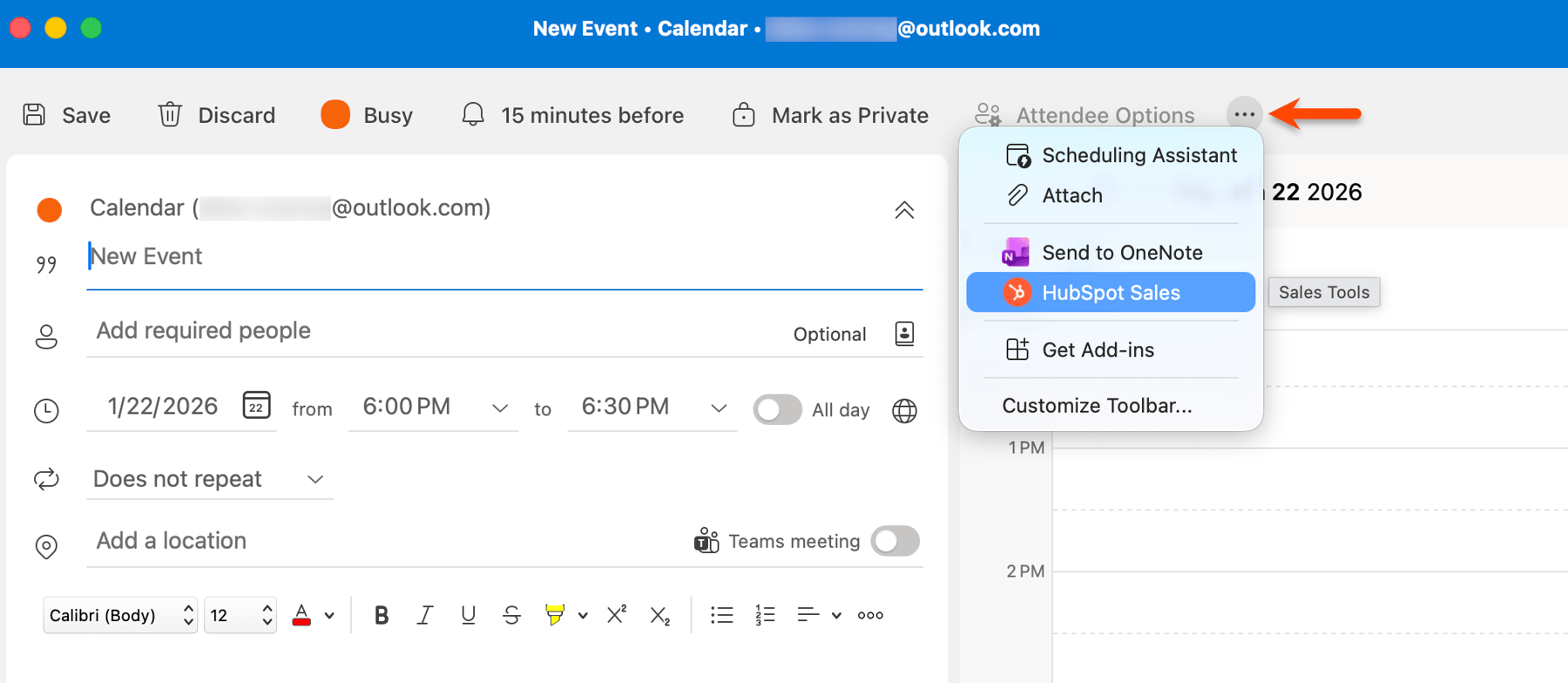
- At the top of the meeting window, click HubSpot Sales.
- If you don't see the add-in, click the three horizontal dots icon and select HubSpot Sales.
Prepare for upcoming meetings
Subscription required A Sales Hub Professional or Enterprise subscription is required to prepare for upcoming meetings.
Seats required An assigned Sales Seat is required to prepare for upcoming meetings.
- In your Outlook calendar, click the upcoming meeting you'd like to prepare for.
- At the top of the meeting window, click HubSpot Sales.
- In the HubSpot Sales task pane, click Prepare.
- You'll be directed to the meeting assistant to prepare.

Follow up on past meetings
Subscription required A Sales Hub Professional or Enterprise subscription is required to follow up on past meetings.
Seats required An assigned Sales Seat is required to follow up on past meetings.
- In your Outlook calendar, click the meeting you'd like to follow up with.
- At the top of the meeting window, click HubSpot Sales.
- In the HubSpot Sales task pane, click Follow up.
- You'll be directed to the meeting assistant to record the follow up.

Log meeting outcomes
- In your Outlook calendar, locate and click your meeting.
- At the top of the event window, click HubSpot Sales.
- In the HubSpot Sales task pane, click the Outcome dropdown menu and select an outcome.