Last updated: January 14, 2026
Available with any of the following subscriptions, except where noted:
-
 Marketing Hub
Professional, Enterprise
Marketing Hub
Professional, Enterprise
-
 Sales Hub
Professional, Enterprise
Sales Hub
Professional, Enterprise
-
 Service Hub
Professional, Enterprise
Service Hub
Professional, Enterprise
-
 Data Hub
Professional, Enterprise
Data Hub
Professional, Enterprise
-
 Content Hub
Professional, Enterprise
Content Hub
Professional, Enterprise
-
 Smart CRM
Professional, Enterprise
Smart CRM
Professional, Enterprise
-
 Commerce Hub
Professional, Enterprise
Commerce Hub
Professional, Enterprise
Add custom and cross-object report cards directly to CRM records so your teams can see key metrics in context. These report cards surface aggregated data from multiple objects and external sources, and can be added or configured when customizing CRM record page views.
Before you get started
The following permissions are required to add custom and cross-object reports to CRM records:
- You must have Create/own and Edit report permissions to allow for report card customization.
- You must have All [object] permissions to allow for record customization.
Add report card to CRM record page
To add a report card to a CRM record page:
- In your HubSpot account, click the settings icon in the top navigation bar.
- In the left sidebar, under Data Management, select Objects. Select an object (e.g., Contacts, Deals).
- At the top, select the Record customization tab.
- Click Create team view and enter a name.
- In the middle column, hover between cards, and select Add card.
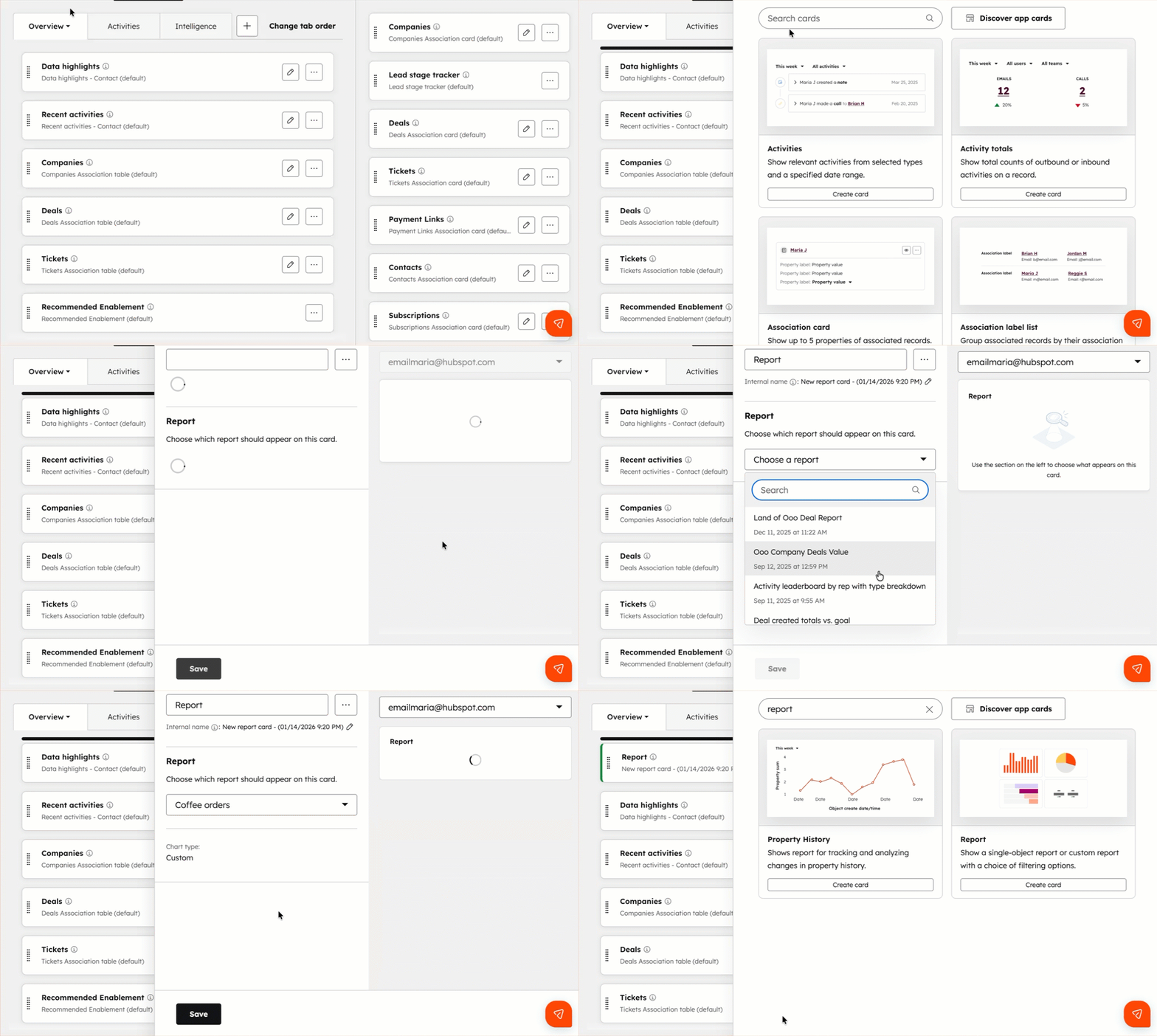
- In the right panel, search Report. Then, select Create card.
- Type the name of the card.
- Click the Report dropdown menu, and select a custom or cross-object report.
- Click the Filter report by dropdown menu. The filters that appear will vary by report type:
- Associations: include data for the associated records of the record you're viewing.
- Subject: include data for the record you're viewing.
- Unfiltered: include data across all records of that object, regardless of the record you're viewing.
- Preview the report card on the right. Use the Preview dropdown to see it as it appears on different records.
- Click Save.
- On the record customization screen, you will now see a report card in the middle column.
- Continue customizing your record page view.
- In the top right, click Assign teams. In the dialog box, select the teams you want to add to this record page view. Then, click Done.
- Once you have finished customizing the record page view, click Save and exit.
View report card on a CRM record
After adding a report card to a CRM record page view, follow these steps to view and interact with the report card:
- Navigate to your records (e.g., Contacts, Deals).
- Click the name of a record you want to review.
- The report card will now appear on the CRM record page. Click on the report card to drill down into specific data. You can also use available actions such as Export unsummarized data or Save report.

- To edit the report card, click the settings icon at the top right of the card. You will be taken back to the record customization page to continue editing.